
How to Print PowerPoint with Notes (Step-by-Step Guide for Windows & Mac)
If you want to print your PowerPoint slides with speaker notes included, the solution is simple: use the Notes Pages layout in the print settings. This option prints each slide on a separate page with the notes displayed underneath.
how to print notes in powerpoint

In this complete guide, you’ll learn exactly how to print PowerPoint with notes on both Windows and Mac, how to print multiple slides with notes, common mistakes to avoid, and how to fix common printing problems.
This guide works for the latest versions of Microsoft PowerPoint in Microsoft 365, as well as older desktop versions.
Why Print PowerPoint with Notes?
Printing slides with notes is useful when:
- You need a script while presenting
- You’re teaching or training
- You want detailed handouts for students
- You’re sharing slides with additional explanations
- You need a backup in case presenter view fails
Instead of printing slides alone, the Notes Pages layout prints:
- One slide per page
- All speaker notes below the slide
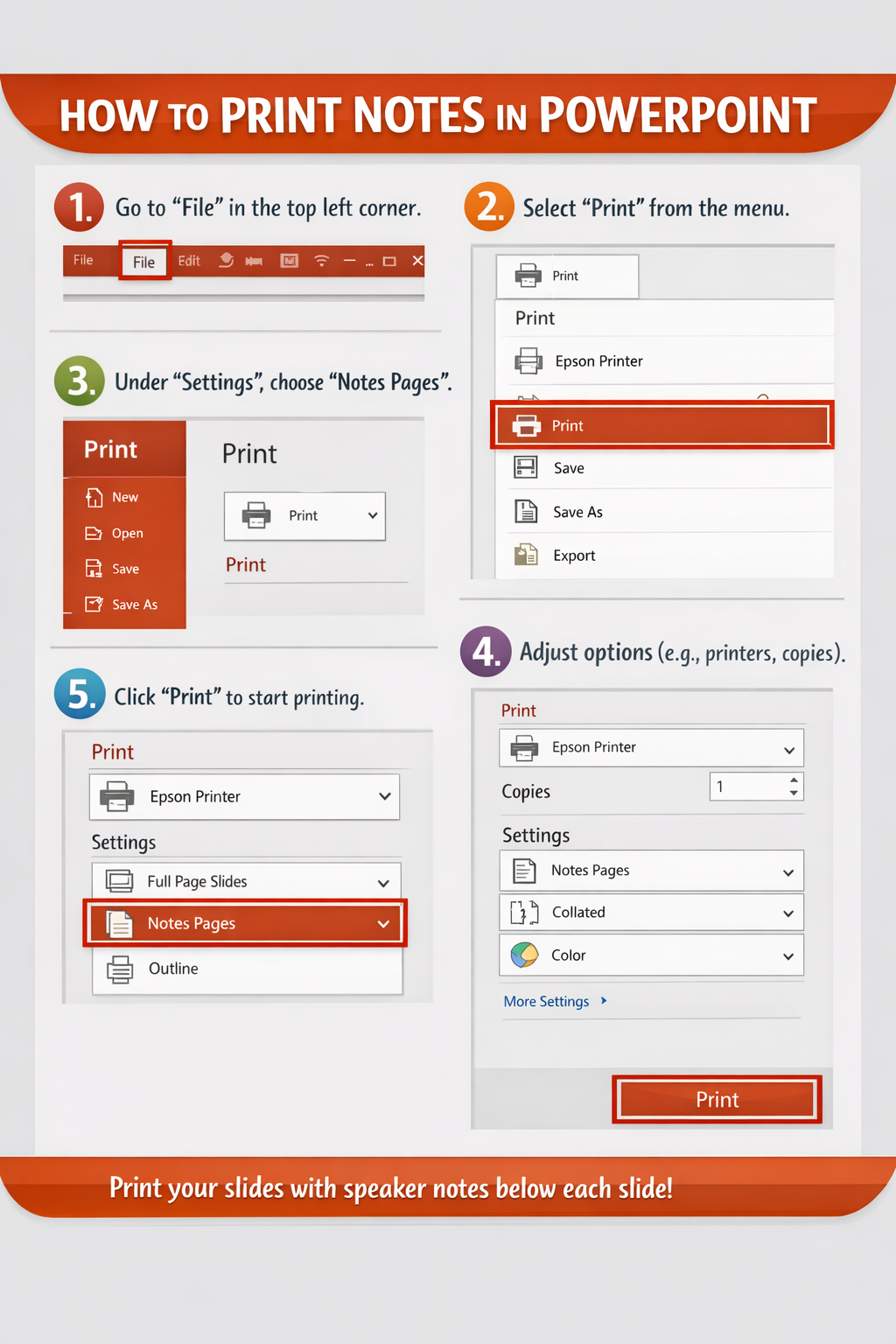
How to Print PowerPoint with Notes on Windows
Follow these steps carefully.
Step 1: Open Your Presentation
- Open Microsoft PowerPoint
- Open the presentation file you want to print
Step 2: Click File
- Click File in the top-left corner
- Select Print
You’ll now see the print preview screen.
Step 3: Change the Print Layout to Notes Pages
Under Settings, you’ll see a dropdown that usually says:
Full Page Slides
Click that dropdown.
Then select:
Notes Pages
This is the most important step. If you skip it, your notes will not print.
Step 4: Adjust Printer Settings
Choose:
- Printer
- Number of copies
- Color or grayscale
- Double-sided (if supported)
Step 5: Click Print
Once everything looks correct in preview:
Click Print
Your slides will print with notes underneath each slide.
How to Print PowerPoint with Notes on Mac
The process is slightly different on macOS, but still simple.
Step 1: Open Your Presentation
Open Microsoft PowerPoint on your Mac.
Step 2: Click File → Print
- Click File
- Select Print
- The print dialog box will open
Step 3: Select Layout → Notes
In the print window:
- Look for Layout
- Choose Notes
If you don’t see this option:
- Click Show Details
- Expand the layout options
Step 4: Adjust Printer Options
Select:
- Printer
- Copies
- Pages (all or specific range)
- Color or black & white
Step 5: Click Print
Confirm your preview shows:
- One slide
- Notes underneath
Then click Print.
How to Print Multiple Slides with Notes
By default, PowerPoint prints one slide per page when using Notes Pages.
If you want to print multiple slides with notes, here are your options:
Option 1: Use Notes Pages (Standard Method)
- Prints 1 slide per page
- Best for readability
- Recommended for presentations
Option 2: Convert to Word for Compact Printing
If you want multiple slides with notes on fewer pages:
On Windows:
- Click File
- Click Export
- Select Create Handouts
- Choose Send to Microsoft Word
- Select layout style
- Click OK
PowerPoint will open Word with slides and notes.
You can then:
- Adjust layout
- Resize slides
- Print multiple slides per page
On Mac:
- Click File
- Select Export
- Choose Rich Text Format (.rtf)
- Open in Word
- Adjust layout and print
Pro Tips for Printing Multiple Slides with Notes
- Reduce slide image size in Word
- Change page orientation to Landscape
- Adjust margins to “Narrow”
- Use 2 pages per sheet in printer settings
- Preview before printing
Troubleshooting: Why Are My Notes Not Printing?
Here are common problems and solutions.
Problem 1: Notes Section Is Blank
Cause: Notes were never added.
Fix:
- Go to Normal View
- Check the Notes pane under each slide
- Add notes if needed
Problem 2: Notes Pages Option Missing
Cause: Using wrong print layout.
Fix:
- Make sure you selected Notes Pages, not Handouts
Problem 3: Formatting Looks Cut Off
Cause: Printer margins too small.
Fix:
- Switch to standard margins
- Avoid scaling above 100%
Problem 4: Print Preview Doesn’t Match Output
Cause: Printer driver issue.
Fix:
- Update printer driver
- Save as PDF first
- Print from PDF
Problem 5: Slides Too Small
Cause: Using handouts instead of Notes Pages.
Fix:
- Re-select Notes Pages
Common Mistakes When Printing PowerPoint with Notes
Avoid these errors:
1. Forgetting to Change Layout
Most people leave it on “Full Page Slides.”
2. Not Checking Print Preview
Always verify notes appear under slides.
3. Using Handouts Instead of Notes Pages
Handouts do NOT include speaker notes.
4. Printing Without Testing One Page First
Always test print one page before printing 50 copies.
5. Not Adjusting Margins in Word
When exporting to Word, adjust margins for better layout.
Best Settings for Professional Printing
For clean, professional results:
- Use Notes Pages layout
- Print in grayscale (unless color is necessary)
- Use high-quality paper
- Set scaling to 100%
- Print one test page first
For meetings or classrooms:
- Use double-sided printing
- Staple by section
- Use 3-hole punch for binders
FAQ: Printing PowerPoint with Notes
1. Can I print PowerPoint notes without slides?
No. The Notes Pages layout always includes the slide image.
If you want notes only, export to Word and delete slide images before printing.
2. Can I print multiple slides with notes on one page?
Not directly inside PowerPoint.
You must export to Word and adjust the layout manually.
3. Why are my notes cut off when printing?
This usually happens because:
- Margins are too small
- Text is too long
- Scaling is incorrect
Try adjusting margins or splitting long notes.
4. Does printing with notes work in older versions?
Yes. The Notes Pages option exists in most desktop versions of Microsoft PowerPoint.
5. Can I print notes in PDF format?
Yes.
Go to:
File → Print → Choose Microsoft Print to PDF
Or:
File → Export → Create PDF
Your notes will appear in the PDF.
Quick Reference: Fast Steps
Windows:
File → Print → Layout dropdown → Notes Pages → Print
Mac:
File → Print → Layout → Notes → Print
Final Tips for Saving Paper
If you need to reduce paper usage:
- Export to Word
- Resize slides smaller
- Use narrow margins
- Print 2 pages per sheet
- Use double-sided printing
This can cut paper usage by 50%.
Conclusion
Printing PowerPoint with notes is simple once you select the correct layout. Just choose Notes Pages in the print settings, confirm the preview shows your notes under each slide, and print.
For multiple slides with notes on fewer pages, export the presentation to Word and customize the layout before printing.
By following the step-by-step instructions for Windows and Mac in this guide, you can avoid common mistakes, fix printing problems quickly, and produce clean, professional handouts every time.
Now you know exactly how to print PowerPoint with notes — quickly and correctly.